This can be used to query XML document and get value of particular node with iterating through all the nodes. It would be same as we use SQL query to get data from database.
public static void XpathQuery()
{
//XML document which contains data
string xmlDoc = "<?xml version='1.0'?>" +
"<Company>" +
"<Employee status='trainee'>Abhishek</Employee>" +
"<Employee status ='confirmed'>Vikram Pai</Employee>" +
"<Employee status ='confirmed'>Bhautik Shah</Employee>" +
"<Employee status ='confirmed'>Ashwini</Employee>" +
"<Employee status ='confirmed'>Dheeraj Pal</Employee>" +
"<Employee status ='confirmed'>Laxmi</Employee>" +
"</Company>";
//Create object of reader using XmlTextReader
XmlTextReader reader = new XmlTextReader(xmlDoc, XmlNodeType.Element,null);
//Create object of XPathDocument using reader
XPathDocument xpathDoc = new XPathDocument(reader, XmlSpace.Preserve);
//Get navigator object from XPathDocument using CreateNavigator()
XPathNavigator navigator = xpathDoc.CreateNavigator( );
//prepare query
string query = "/Company/Employee[attribute::status='confirmed'][contains(text(),'Bhautik')]";
//get node iterator from query
XPathNodeIterator iterator = navigator.Select(query);
//display output
while(iterator.MoveNext( ))
{
Console.WriteLine(iterator.Current.Value);
}
// close reader.
reader.Close( );
}
The output will be:
Bhautik Shah
This is the output of query where we searched for employee with status equal to confirmed and value contains Bhautik. This way we can query XML document using XPATH.
Tuesday, June 10, 2008
Querying contents of XML using XPATH
Sunday, June 08, 2008
Cool things in web.config of ASP.NET 2.0
Using web.config in ASP.NET 2.0, you can do many things which apply in your whole web application.
Setting common base class for pages:
You can set base class of all the pages. The code will look as below:
<system.web>
<pages pageBaseType=”MySite.UI.WebSitePageBase” />
</system.web>
Using this, pages in your application will not inherit System.Web.UI.Page class. Instead all will inherit MySite.UI.WebSitePageBase class.
In your page you case specifically inherit from System.Web.UI.Page class. If not specified then by default, pages will inherit MySite.UI.WebSitePageBase class.
Importing namespace for pages:
You can also import the namespace for every page.
<system.web>
<pages>
<imports>
<add namespace=” MySite.UI” />
</imports>
</pages>
</system.web>
Registering custom control:
You can register custom controls/tag prefixes for whole web site.
<configuration>
<system.web>
<pages>
<registerTagPrefixes>
<add tagPrefix="ashish" namespace="Ashish.UI.MyControls"/>
</registerTagPrefixes>
</pages>
</system.web>
</configuration>
Sunday, June 01, 2008
Developing Gadgets for Microsoft Vista sidebar
To develop Gadget you require following items:
1. A manifest file. The name of the file has to be Gadget.xml. This file holds information about all the required settings of Gadget.
2. A web page. This can be a simple HTML file. This web page can have links to CSS file, Java Script code.
Let’s create Test Gadget. As a first step, create a HTML page like below.
1. A manifest file. The name of the file has to be Gadget.xml. This file holds information about all the required settings of Gadget.
2. A web page. This can be a simple HTML file. This web page can have links to CSS file, Java Script code.
Let’s create Test Gadget. As a first step, create a HTML page like below.

Create CSS file which can hold style for the HTML page. The file might look like below.
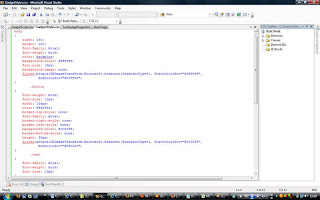
Create a Script file. This script file can be for Java Script or VB Script. In this exercise we will be using VB Script file to get machine information.

Now we will create an important file, i.e. Gadget.xml file. This is the file application uses to display our gadget. This holds reference/name of the HTML file and other information.
The file should look like following.
The file should look like following.

The tags used in this file has description as follows
Tag | Description |
<name> | Name of the gadget as it appears in the gadget picker dialog box. |
<author> | Name of the person who wrote the gadget. The author, copyright, and description tags all appear in the gadget picker when you click on a particular gadget. For details, see the illustration shown below. |
<copyright> | Copyright information, including name of the copyright holder and copyright date. |
<description> | Brief description of the gadget and what it does. |
<icon> | Name of the icon file (the icon is the graphic displayed in the gadget picker). For more on icons, see Creating an Icon in the following subsection of this document. |
<code> | Probably not the most intuitive tag name in the world, but this is the name of the HTML file that makes up your gadget. |
<website> | Web site associated with the gadget |
Place/Copy these files with relevant structure to following location
%userprofile%\appdata\local\microsoft\windows sidebar\gadgets
%userprofile%\appdata\local\microsoft\windows sidebar\gadgets

We have created a folder names Test.Gadget and placed all the required files under that.
Now we need to add this gadget to Sidebar. If the side bar is not visible on your desktop, do as following:
Navigate to Start>All Programs>Accessories>Windows Sidebar
Now we need to add this gadget to Sidebar. If the side bar is not visible on your desktop, do as following:
Navigate to Start>All Programs>Accessories>Windows Sidebar

Click on “Windows Sidebar”. This will add windows sidebar to your desktop.

Click on “+” sign next to Gadget on top of Windows sidebar
This will open Gadget selection screen
This will open Gadget selection screen

You can apply filter to it by going to dropdown on top right.

Select your profile name. The gadget we have copied to profile folder should appear in this list. Select it and click on add

This will add this new gadget to Windows Sidebar

On click of “Get Machine Info”, the machine information will appear.
On moving mouse over Gadget, + sign and grid of dots appear on top right corner of Gadget. You can use this to drag the gadget to anywhere you want.


Note: We have used WMI calls to get machine information. We can use the same information in the Gadget instead opening a new page after click. We can also have auto refreshing Gadget page. This is all about how you design your HTML page to show up in Gadget.
Subscribe to:
Posts (Atom)